General AFAX Questions

Do I need to commit to a long-term contract?

No. There are no long-term contracts or minimum sign-up commitments required to use AFAX.

Choose the plan that best suits your needs, whether you prefer a flexible monthly subscription or wish to take advantage of our discounted annual plans.

You may upgrade, downgrade, or cancel your plan at any time. Please refer to our Terms of Service for more information.

Can I send multiple documents in a single fax?

Yes. AFAX allows you to send multiple documents together as a single fax transmission.

You may send multiple documents using either of the following methods:

1. Using the AFAX Web Portal

Securely upload multiple documents at once through the AFAX portal and send them to your selected destination fax number.

2. Using the Email-to-Fax Feature

Attach multiple documents to your email and send them to:

[yourfaxnumber]@go.faxthis.ca

All attached documents will be transmitted together as a single fax.


 Important Note

Please note that most email service providers apply attachment size limitations to outgoing emails. If you are using the Email-to-Fax feature, ensure your combined attachments do not exceed your email provider’s allowed size limits.

Will I receive busy signals on my AFAX number?

No. Unlike traditional fax lines or small fax adapters, AFAX is designed to support multiple concurrent fax channels for each fax number.

As a result, under normal operating conditions, your AFAX number should not return busy signals when receiving faxes.

Incoming faxes are processed securely through our cloud-based infrastructure and delivered individually to your designated email address or AFAX portal.

This allows your business to receive multiple fax transmissions more efficiently without the limitations commonly associated with traditional fax lines.

Can I use multiple email addresses to send or receive faxes?

Yes. AFAX allows you to send and receive faxes using multiple email addresses associated with the same account.

This feature is especially useful for:

  • staff members
  • departments
  • assistants
  • business partners
  • shared office environments

Additional users and their associated email addresses can be managed directly within your AFAX Portal.


Sending Faxes from Multiple Email Addresses

Authorized users may send faxes using their own email addresses through the Email-to-Fax feature.

For example, you may allow your staff or partners to send faxes from their individual business email addresses while using the same AFAX account and fax resources.


Receiving Faxes

Incoming faxes may also be delivered to multiple designated email addresses depending on your account configuration and user settings.


Additional User Accounts

Most AFAX plans include a predefined number of additional users at no extra cost.

Additional users beyond the included limit may require an upgrade or an additional monthly fee depending on your selected plan.

If you require a larger number of users or departments under the same account, please contact AFAX Support for custom package options.


 Important Note

To help ensure reliable fax processing and account security, we recommend maintaining a controlled and authorized list of email addresses associated with your account.

Please note that standard monthly usage limits and applicable charges still apply for outgoing fax transmissions

Can I send a fax to multiple fax numbers at the same time?

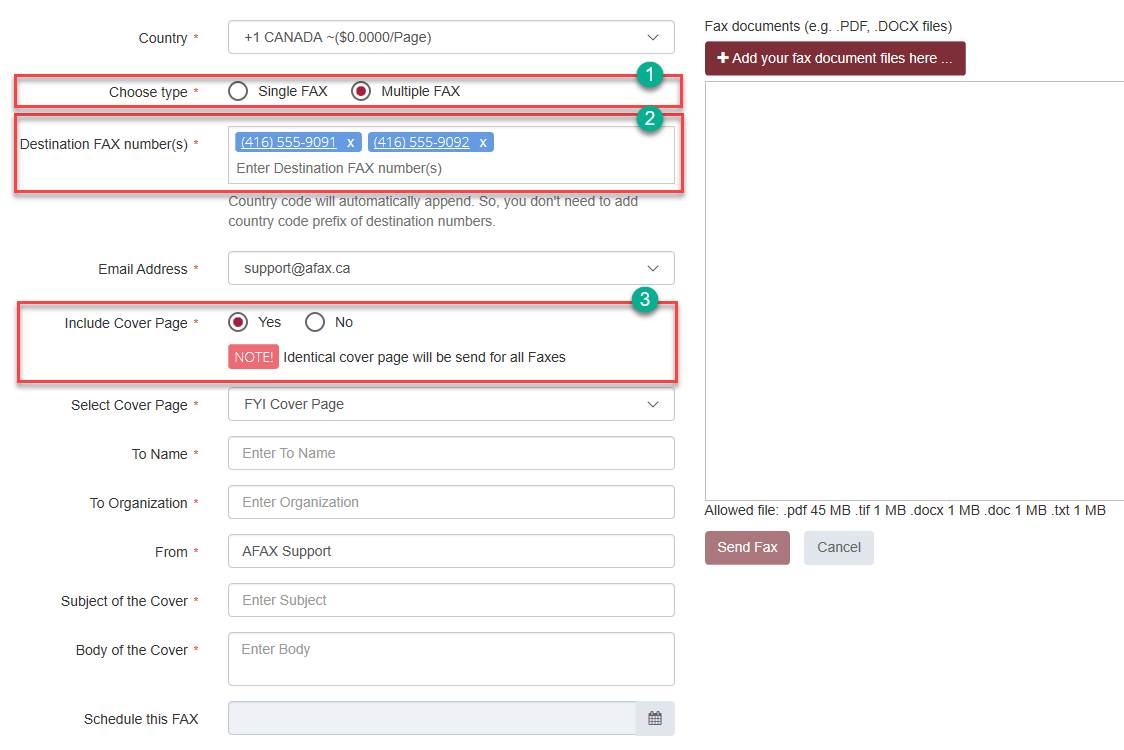
Yes. AFAX supports sending a single fax transmission to multiple destination fax numbers simultaneously using the Multiple FAX feature available within the AFAX Portal.

This feature is ideal for:

  • announcements
  • notifications
  • multi-recipient communications
  • business broadcasts

How to Send a Fax to Multiple Recipients

Within your AFAX Portal, select the “Send FAX” option and follow these steps:

1. Select “Multiple FAX”

Choose:

Multiple FAX

as the fax transmission type.


2. Enter Destination Fax Numbers

Enter the list of destination fax numbers you wish to send the fax to.


3. Choose Cover Page Options

Select whether you would like to include a cover page for each fax transmission.

  • Select “Yes” to include a cover page
  • Select “No” to send documents without a cover page

Then upload or attach your fax documents.


 Additional Information

AFAX will process and transmit your fax securely to each selected recipient individually.

Please note that standard fax usage limits and applicable transmission charges may apply depending on your selected plan and total page count.

If you require enhanced multi-recipient faxing features or additional enterprise functionality, please contact AFAX Support for further assistance.


Can I adjust my plan to match my business faxing needs?

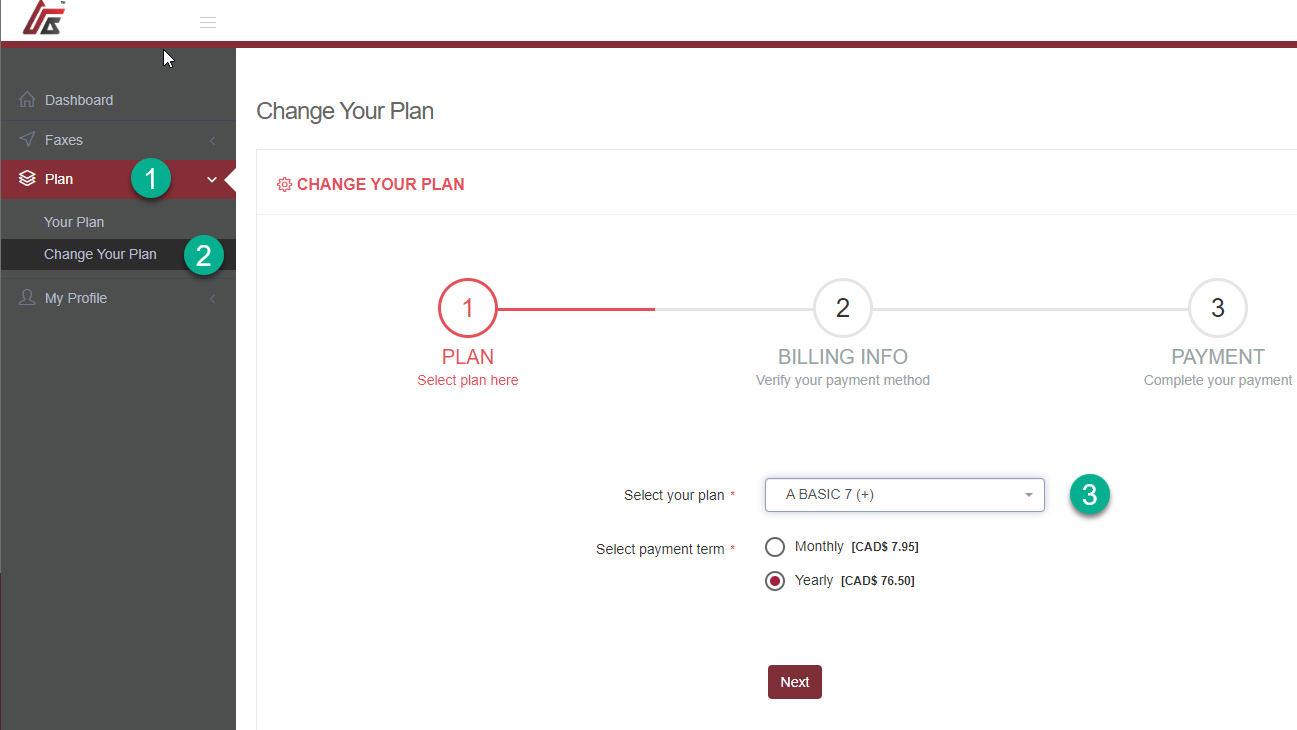
Absolutely. AFAX allows you to upgrade or downgrade your plan at any time to better match your business faxing needs.

Simply sign in to your AFAX account and access the secure customer portal, where you can review and manage your current subscription plan.

Upgrade Your AFAX Plan

Changes to your plan are processed quickly, allowing you to adjust your faxing capacity and features as your business requirements evolve.

Upgarde your AFAX Plan

If you require additional assistance or would like help selecting the most suitable plan for your organization, please contact AFAX Support and our team will be happy to assist you.

How do I use the Contact Book?

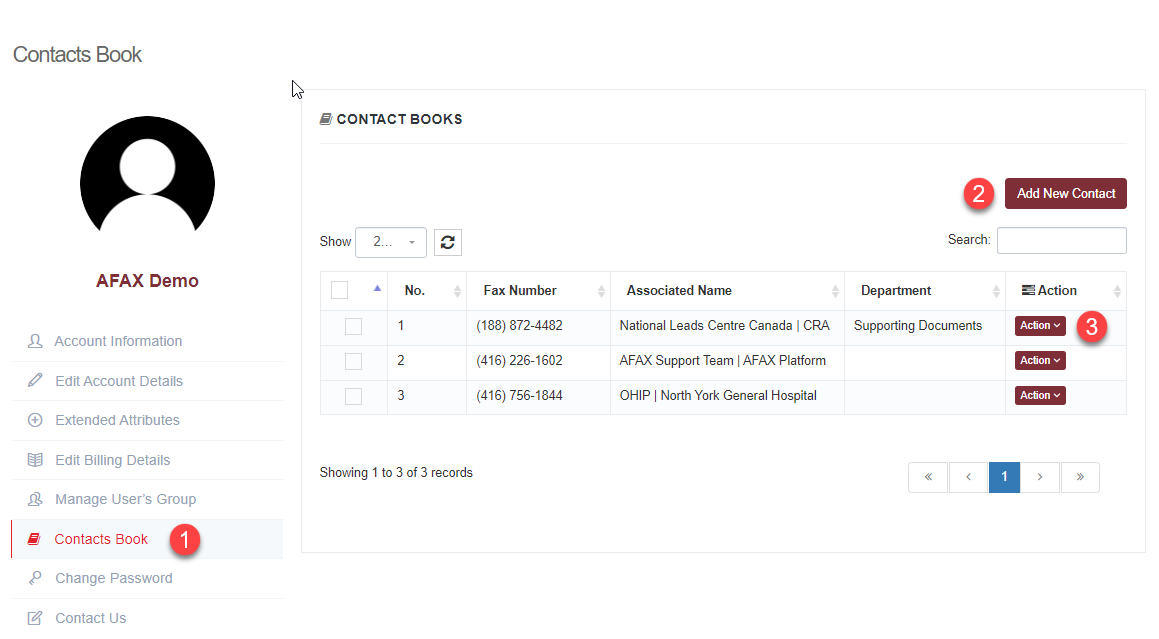
The AFAX Contact Book allows you to securely save and manage frequently used fax contacts for faster and more convenient fax transmissions.


Managing Your Contacts

After signing in to your AFAX account:

1. Open the Contact Book

From the left navigation menu, select:

Contact Book


2. Add a New Contact

Create a new contact by entering the contact details and destination fax number.


3. View or Edit Contacts

Use the available action buttons to:

  • view contact details
  • update existing contacts
  • manage your saved contact list

Using Contacts When Sending a Fax

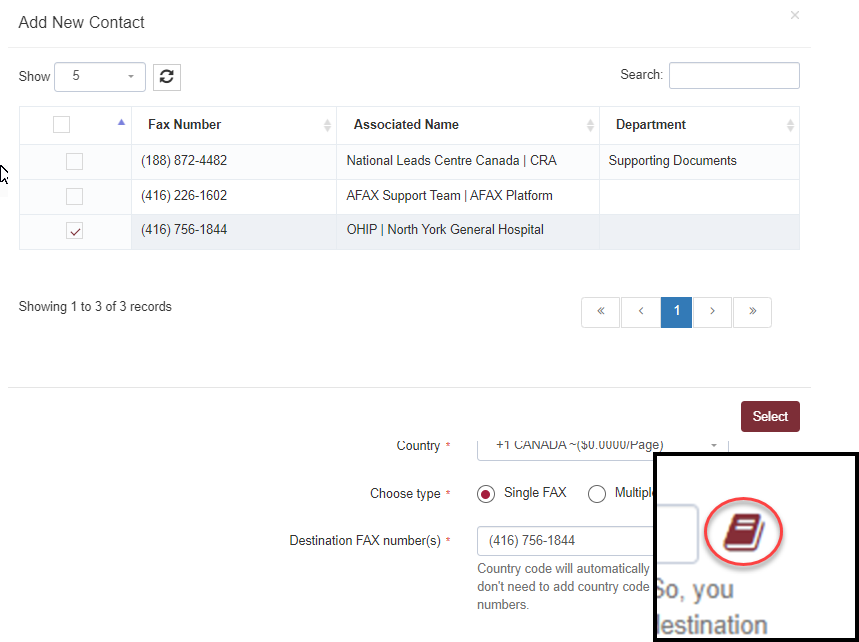
Within the Send FAX section, you will see a contact selection icon that allows you to quickly choose recipients directly from your saved Contact Book.

This helps simplify the fax sending process and reduces the need to manually enter fax numbers repeatedly.

What File Formats are supported for Faxing?

AFAX supports a wide variety of commonly used document and image formats for fax transmission.

Supported file types may include:

  • PDF
  • Microsoft Word® documents (DOC, DOCX)
  • Microsoft Excel® files
  • TIFF / TIF

For the best compatibility and fax quality, we recommend using:

PDF format

whenever possible.


Multiple Attachments Supported

AFAX also supports sending multiple documents together as a single fax transmission through:

  • Email-to-Fax
  • AFAX Secure Portal

 Important Notes

Some email providers may impose attachment size limitations when using Email-to-Fax services.

For larger documents or higher-volume faxing, we recommend using the AFAX Secure Portal.