Two-Factor Authentication (2FA) adds an extra layer of security to your AFAX account by requiring a verification code each time you sign in.
Even if someone obtains your password, they will not be able to access your account without the additional verification code.
AFAX supports the following verification methods:
 Email Verification
 Authenticator App (Recommended)
Authenticator apps may be downloaded from:
- Google Play Store (Android)
- Apple App Store (iPhone/iPad)
Supported apps include:
- Google Authenticator
- Microsoft Authenticator
- Authy
How to Enable Two-Factor Authentication (2FA)
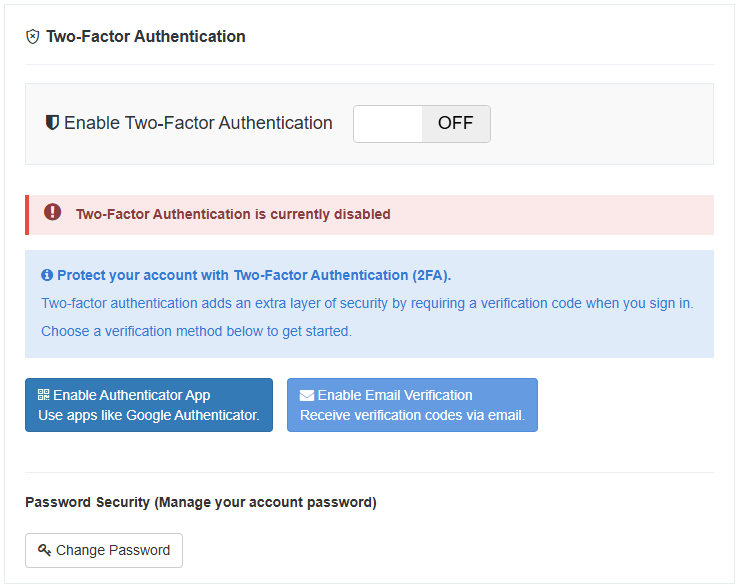
Step 1 — Open Login Security Settings
Sign in to your AFAX account and navigate to:
My Profile → Login Security
Within this section, you will find the available Two-Factor Authentication options.
Step 2 — Choose Your Verification Method
Select your preferred verification method:
Authenticator App (Recommended)
Use an authenticator application installed on your mobile phone or tablet device.
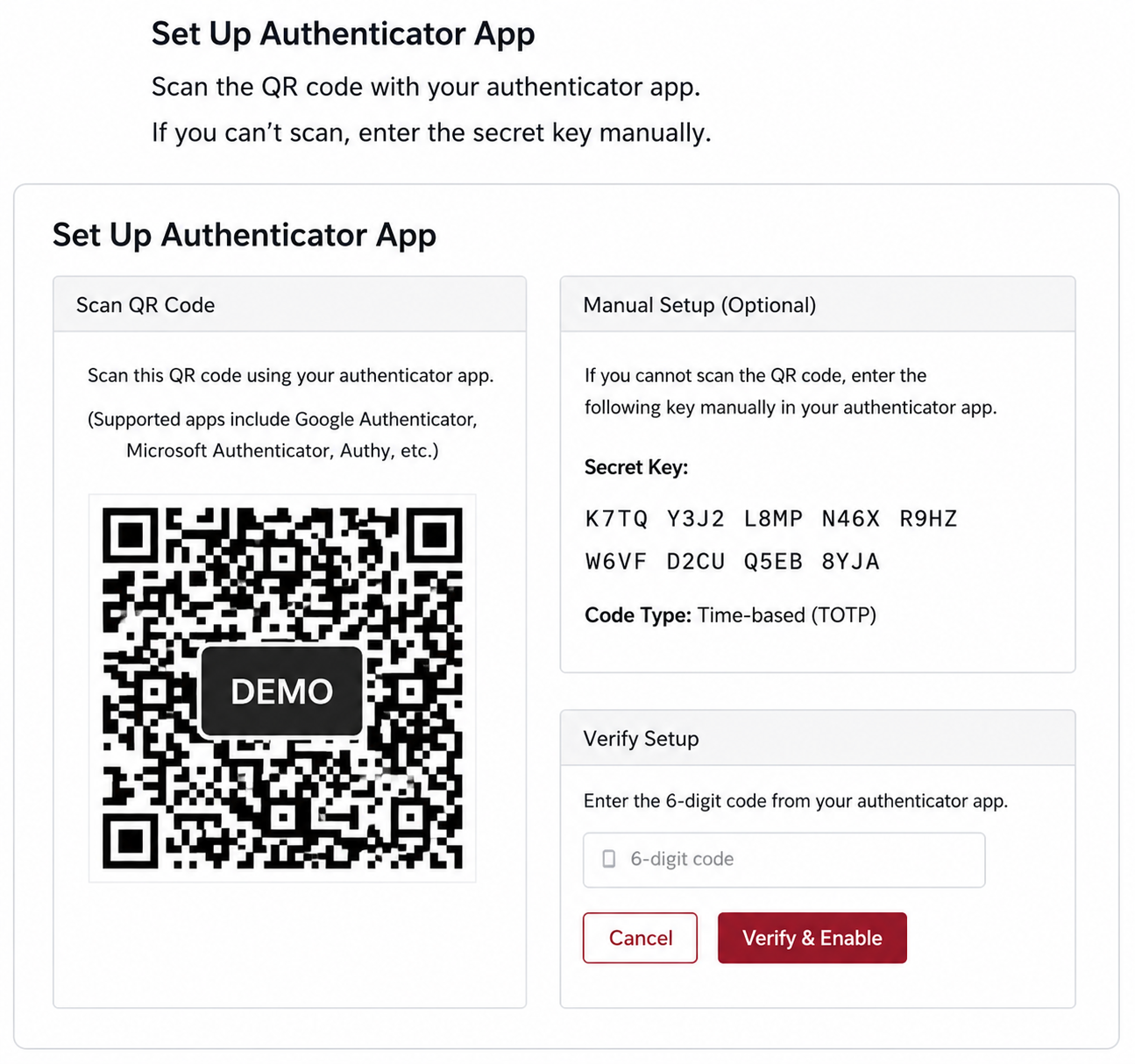
After selecting this option:
- Scan the QR code using your authenticator app
- Or enter the secret key manually if needed
- Enter the generated 6-digit verification code to complete setup
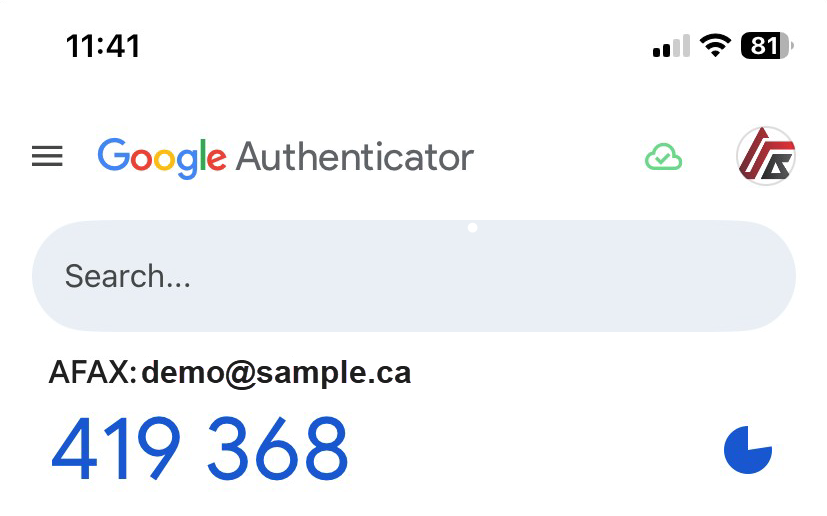
After completing setup, your authenticator app will generate a unique 6-digit verification code that refreshes automatically every few seconds.
Email Verification
Receive a verification code by email each time you sign in.
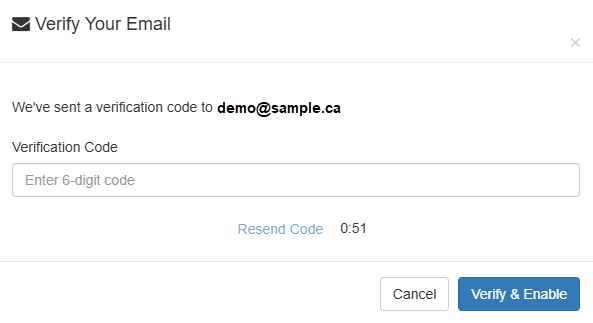
Step 3 — Enable and Verify
Enable your selected authentication method and follow the on-screen instructions to complete the verification process.
Once setup is complete, your AFAX account will be protected using Two-Factor Authentication.
Step 4 — Sign In Using Two-Factor Authentication
Once Two-Factor Authentication (2FA) has been enabled, you will be prompted to enter a verification code each time you sign in to your AFAX account.
The verification process will vary depending on the authentication method you selected.
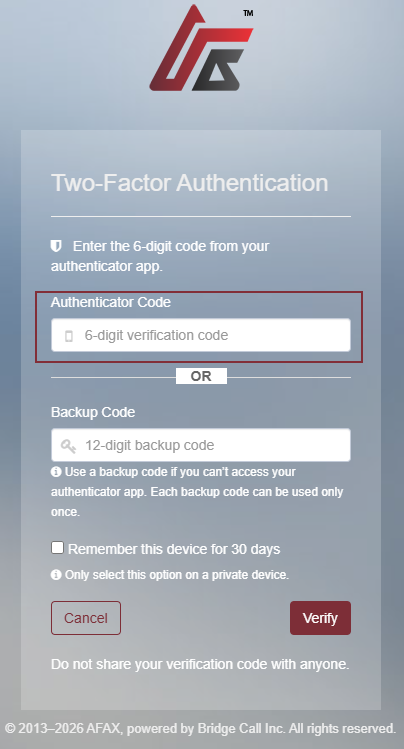
Authenticator App Verification
If you selected an Authenticator App, open the app on your mobile device and enter the current 6-digit verification code generated for your AFAX account.
Backup codes may also be used if you temporarily cannot access your authenticator app.
Email Verification
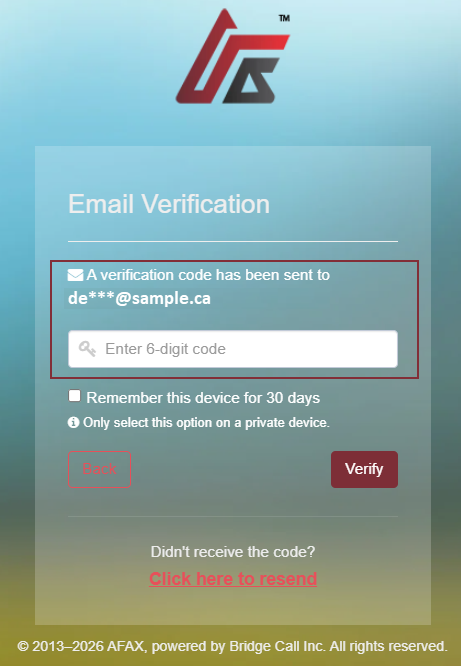
If you selected Email Verification, a 6-digit verification code will be sent to your registered email address each time you sign in.
Enter the verification code to securely access your AFAX account.
If you do not receive the code immediately, you may use the “Click here to resend” option.
 Optional Convenience Feature
When signing in from a private and trusted device, you may optionally select:
“Remember this device for 30 days”
This reduces the need to enter a verification code on every login from that device.
Benefits of Using Two-Factor Authentication
- Helps protect your account from unauthorized access
- Adds additional security beyond your password
- Helps secure sensitive fax communications and account information
- Reduces the risk of compromised credentials
Important Notes
- Keep your verification method accessible at all times
- Store backup codes in a secure location
- Do not share your verification codes with anyone
- We recommend using an Authenticator App for the highest level of security